WSPER is a panic alarm provider, with cellular-connected stationary and wearable safety buttons.
Overview
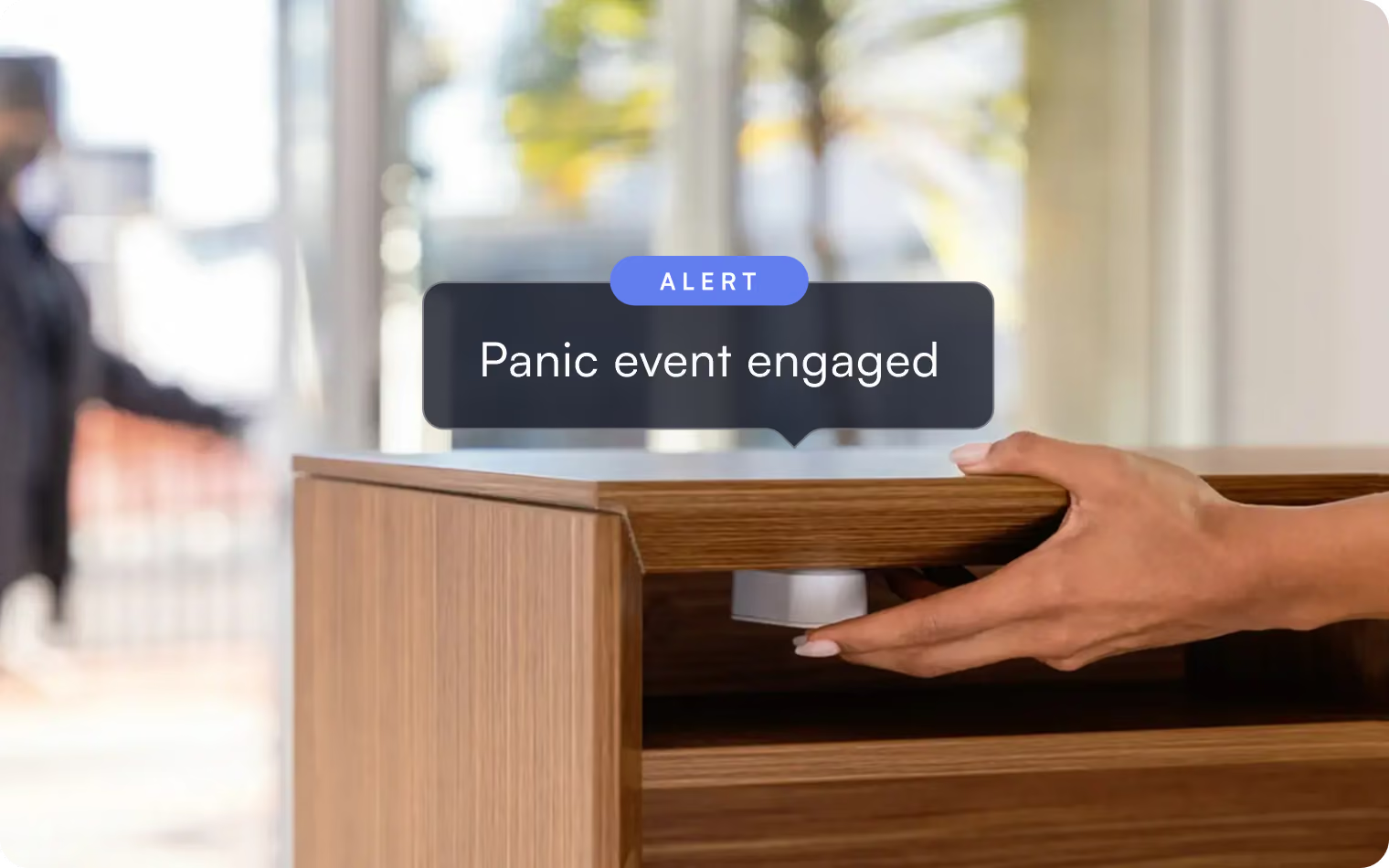
Lumana integrates with WSPER panic buttons. When someone presses a WSPER button, Lumana sends the live view from the camera covering that location to WSPER's monitoring station — so responders see the scene, not just a panic signal.
- Video on every panic event: When a WSPER button is pressed, Lumana attaches the live view from that location and forwards it to WSPER's monitoring station.
- Button-to-camera mapping: Pair each WSPER panic button location with the Lumana camera covering it, so the right live view goes out the moment the button is triggered.
- Stationary and wearable buttons: WSPER offers fixed-mount and wearable LTE-M panic buttons — no hubs, no Wi-Fi, and no extra cabling to manage.
- Real-time event forwarding: Lumana forwards panic events to WSPER as they happen, with the associated camera feeds attached.
Benefits
A panic button alert tells a monitoring station that someone needs help — but not what they're walking into. By pairing each WSPER button with the camera covering that location, Lumana sends live video alongside the panic event, so monitoring staff and responders can see the situation as it unfolds and act with context. Mapping buttons to cameras once means every future panic event arrives with the right view already attached — no scrambling to find the relevant feed.
Installation
- Find your Lumana Location ID (Lumana): Log in to Lumana and copy the Location ID for the site you're integrating.
- Add a panic event tag (Lumana): In the org database, open Event tags and add a tag for the location's panic button, including the alarmType field — this captures the panic button call.
- Generate a Lumana token (Lumana): In Settings, under API key, generate a token so WSPER and Lumana can communicate. Keep it secure and share it only with WSPER.
- Submit WSPER's token request form (WSPER): Open the token request form WSPER provides to begin the connection.
- Enter your details (WSPER): Provide your Location ID (or Camera ID), a recognizable token name, and the event tag ID.
- Add the WSPER webhook (Lumana): In Integrations, create a webhook using the WSPER webhook URL and security settings from WSPER's guide.
- Create the panic button alert (Lumana): Configure the panic alert to trigger on "panic" events, set the wait to 1 second, choose the Panic Button webhook type, and select the camera feeds to send to WSPER.
- Email the token to WSPER (Email): After submitting the form, copy the generated token and email it to support@getwsper.com.
Want to learn more?
Discover what AI video security can do for your organization.