TOA is a manufacturer of network audio and public address systems, including the IP-A1 series of IP speakers and microphone stations.
Overview
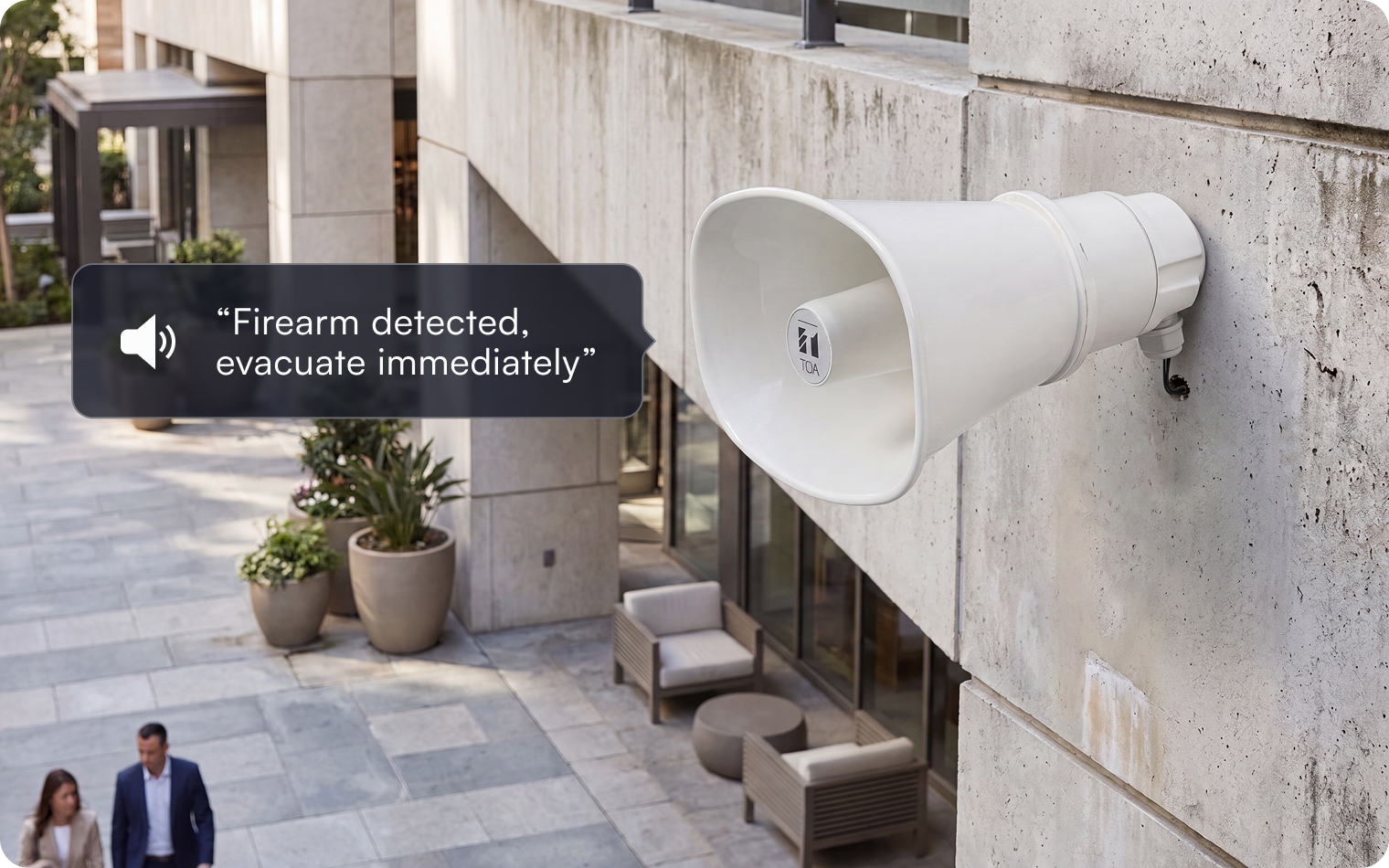
Lumana integrates with TOA IP-A1 network audio to pair AI video detection with an automated audio response. When Lumana detects an event — such as someone entering a restricted area — it can immediately play a pre-recorded or live message on a connected TOA speaker, so a detection becomes an on-site response, not just an alert on a screen.
- Automated audio response: When an alert fires, Lumana plays a pre-recorded or live message on a connected TOA IP-A1SC15 horn speaker — for example, warning that someone has entered a restricted area.
- Detection-triggered workflow: Pair a perimeter or restricted-zone alert with an audio action, so a visual detection immediately triggers the right message on the right speaker.
- Alert your team at the same time: Alongside the audio message, Lumana can notify security personnel, giving the people who respond real-time situational awareness.
- Standards-based network audio: TOA IP-A1 speakers connect over the network, and Lumana triggers supported IP speakers using a RESTful API or direct TCP/UDP messaging.
Benefits
On its own, video tells your team that something happened — someone still has to see the alert and decide what to do. Pairing Lumana with TOA IP-A1 audio adds an immediate response: the moment Lumana detects activity in a restricted area, it can broadcast a warning on the perimeter speaker and alert staff at the same time. Pre-recorded or live messages are designed to deter unwanted activity and give responders a head start, so the same cameras that used to only record now help your team act in real time — without adding staff.
Installation
- Connect the TOA speaker: The IP-A1SC15 is a PoE speaker — connect it to a PoE switch, log in at its default IP address, and assign it a static IP. Refer to the TOA speaker manual for default credentials and IP configuration.
- Upload media and define a pattern: On the speaker, upload your audio files and create a playback pattern. Each pattern has a name and number and sets the media file, volume, and other attributes — you'll link it to a Lumana alert later.
- Add the speaker to Lumana: At the speaker's location, make sure at least one Lumana Core can reach it, then use Add speaker in the navigation bar and enter the details. Lumana tests the connection and confirms the speaker was added.
- Create the alert and audio action: Create or edit an alert — for example, a restricted-zone or perimeter intrusion alert — then add a Play sound action and choose the pattern (by message number) and the TOA speaker to play it on.
Want to learn more?
Discover what AI video security can do for your organization.