LenelS2 is a cloud based physical security provider, which includes their OnGuard access control solution.
Overview
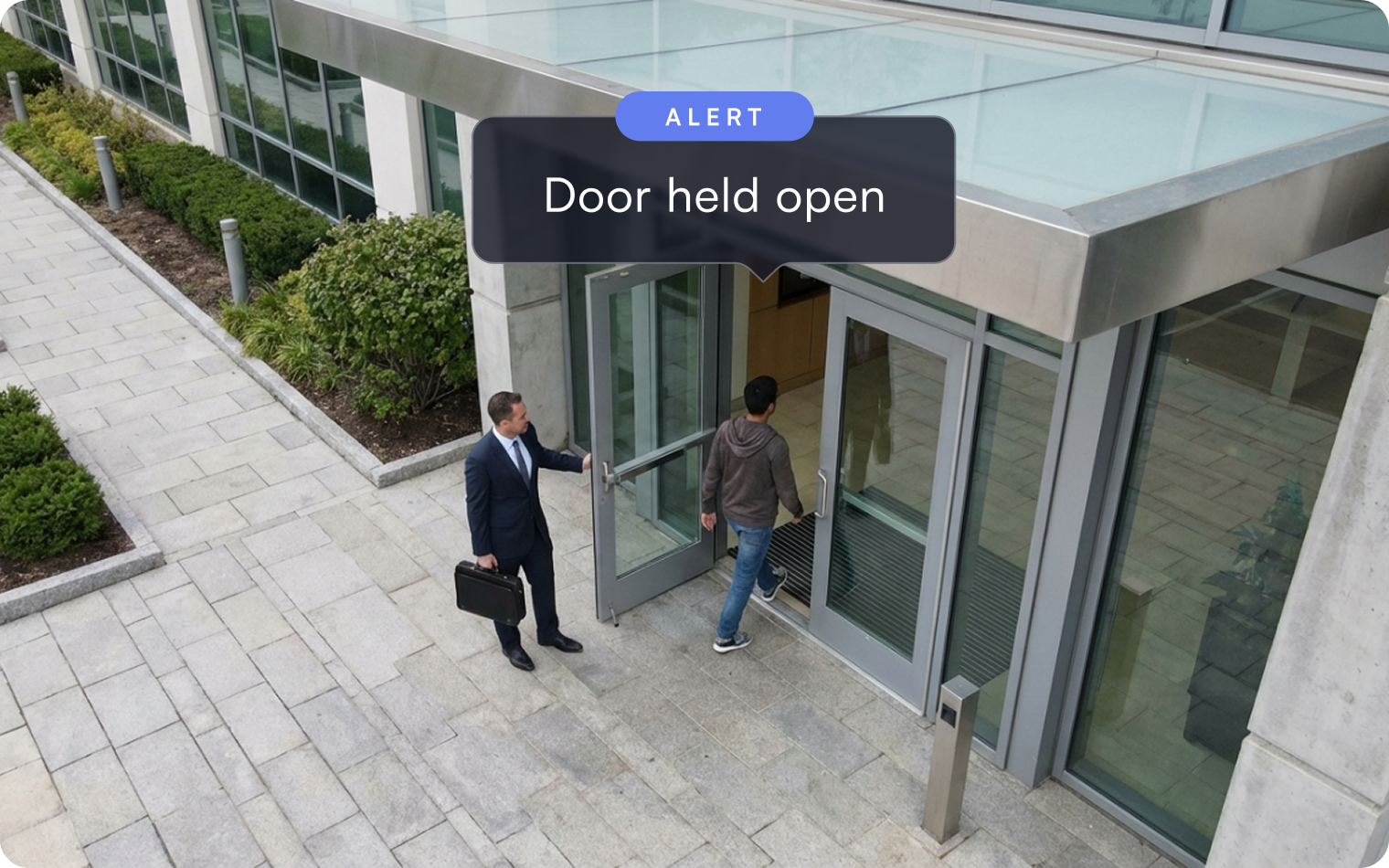
Lumana is a factory-certified LenelS2 OAAP partner, integrated with OnGuard 8.3 and 8.4. When OnGuard reports a Door Held Open or Door Forced Open event, Lumana validates it against the camera covering that door — so your team responds to access events with video context, not just an alarm code.
- Video-validated door events: When OnGuard reports a Door Held Open or Door Forced Open, Lumana checks it against live video from the camera covering that door before your team acts.
- Door-to-camera mapping: Pair each OnGuard door with a Lumana camera and outline the door in the camera view, so validation focuses on exactly the right area.
- Visual context on every event: Access events arrive with the camera view attached — your team sees what happened instead of decoding an alarm.
- Centralized access event view: Review the latest events pushed from OnGuard in one place inside VMS+, right alongside your video.
Benefits
For teams running OnGuard, a door alarm on its own tells you something happened — not whether it matters. Lumana pairs each Door Held Open and Door Forced Open event with the camera covering that door and validates it against video, so your team sees the situation before deciding how to respond. Mapping doors to cameras once means every future event arrives with the right view already attached, cutting the time spent pulling footage and confirming what an alarm actually represents. The result is faster, better-informed response to the access events that matter — and less time spent on the ones that don't.
Installation
- Enable the LenelS2 integration: In VMS+, open Org Settings, go to Integrations, and click Install on LenelS2.
- Add OnGuard as an access control device: In Devices, select your location, add a new device, and choose access control. Set the type to LenelS2 and pick the Lumana Core that will subscribe to OnGuard events.
- Connect to OnGuard: Enter your OnGuard server name, username, password, IP address, and port. Click Test to confirm the connection, then Save. Lumana creates the subscription in OnGuard automatically.
- Assign doors to cameras: Pull your doors from OnGuard, pair each one with a pre-installed Lumana camera, and draw a bounding box on the camera view to mark the door for detection.
- Create a clearance alert: In Alerts Configuration, add an alert and choose Event clearance. Select the OnGuard event to validate — Door Held Open or Door Forced Open — then choose the door and the camera, and create the alert.
- Review events: Validated access events appear in the Access Control Events view, where your team sees what OnGuard pushed and how Lumana assessed it over video.
Want to learn more?
Discover what AI video security can do for your organization.